MIPI camera
Copyright © Quectel Wireless Solutions Co., Ltd. 2026. All rights reserved.
This document describes in detail the Quectel Pi M2 smart main control board MIPI CSI camera interface identification and connection methods, and provides functional usage guidance and solutions to common problems.
Supported Accessories
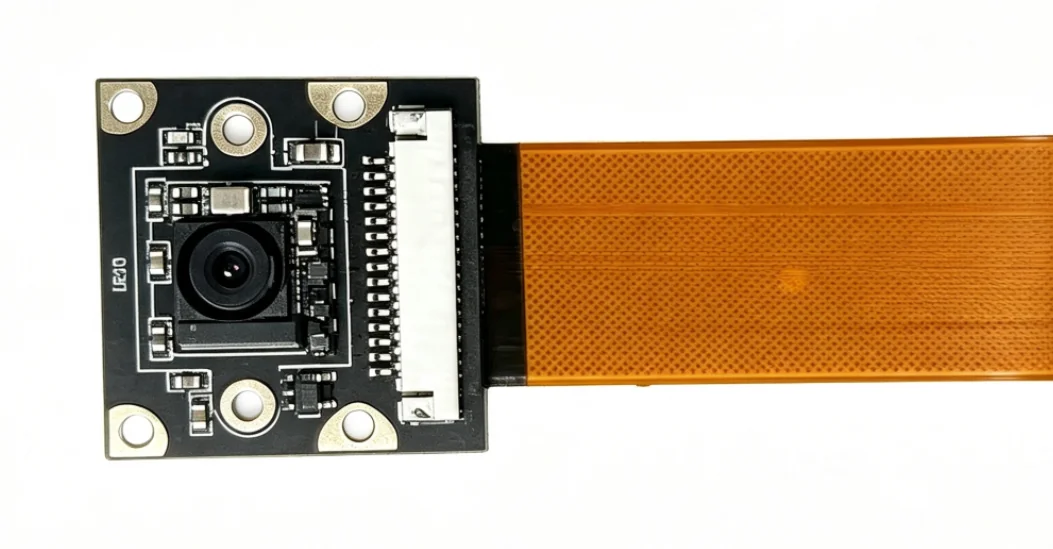
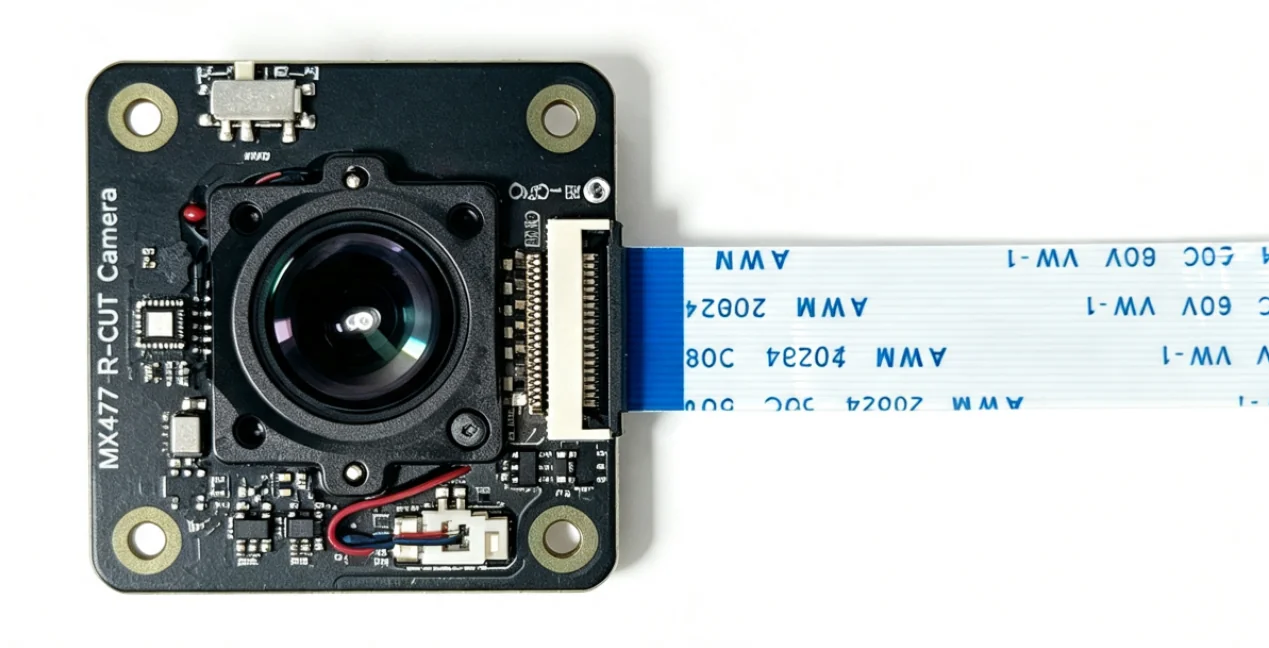
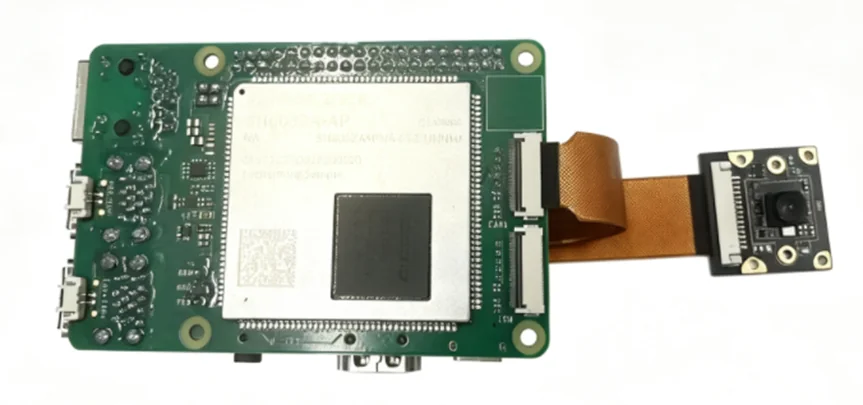
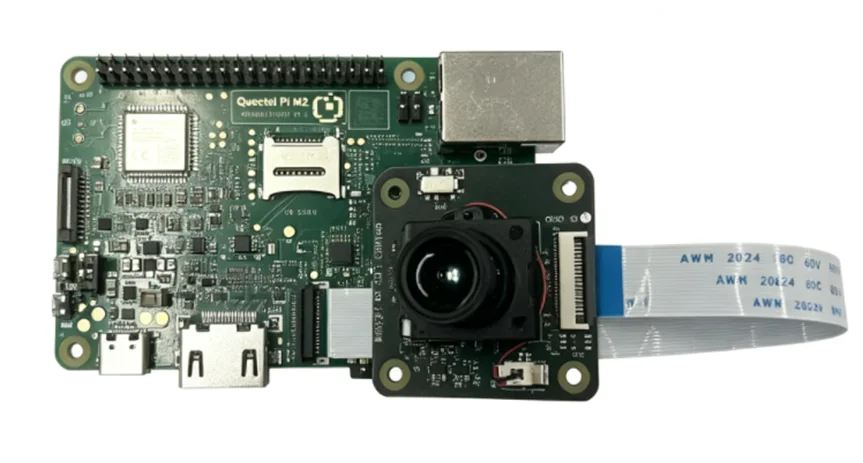
The original accessory FPC cable is not connected to the camera and needs to be connected manually. When connecting, note that the gold fingers of the cable should face the metal contact surface inside the board (gold finger side facing down). Avoid connecting the cable incorrectly to prevent camera damage. After connecting the cable, the camera looks as follows:
IMX 219:
IMX 477:
Hardware Interface
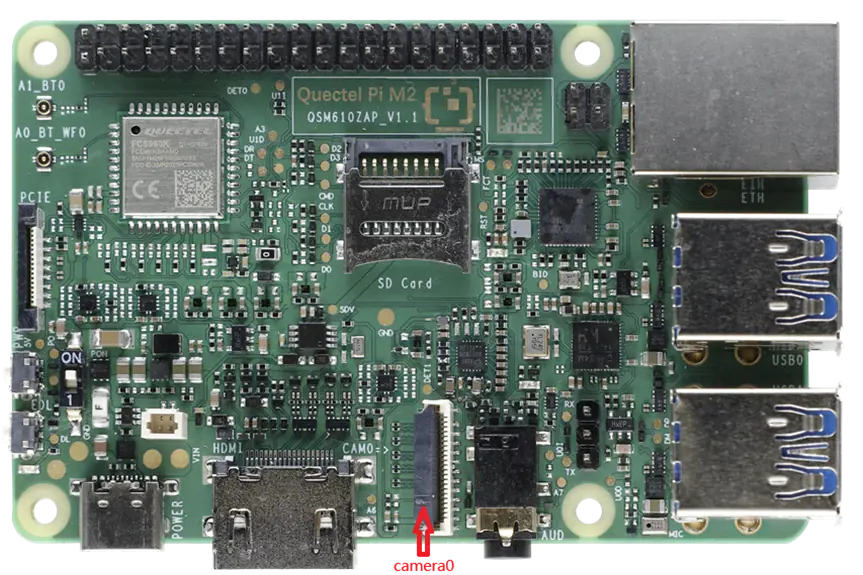
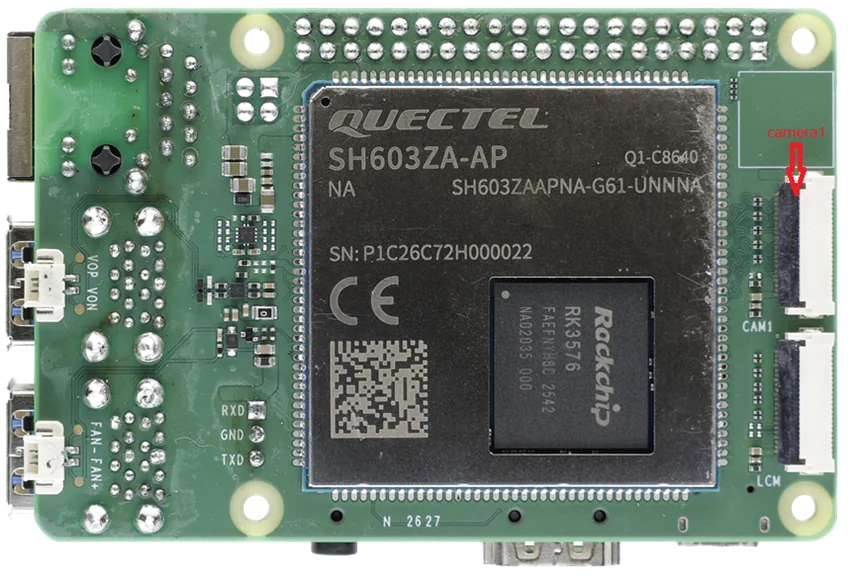
The Quectel Pi M2 smart main control board supports two MIPI CSI camera interfaces. The interface locations and labels are shown below:
M2 camera interface:
Quick Start
Connect the camera as shown in the figure below. The two supported camera accessories can be connected to camera0/camera1 as needed. When connecting, pull up the black latch of the connector and insert the FPC cable into the CSI slot. Note that the gold fingers of the cable should face the metal contact surface inside the board (the white side), press the latch to secure the cable, and make sure the FPC cable is stable and not loose. The camera connection method is shown in the figure below:
Refer to Display configuration to connect the display.
M2 Functional Usage
Prerequisites:
Before using the camera function, enter the following commands in the terminal:
export GST_V4L2_FORCE_LIBV4L2=0 WAYLAND_DISPLAY=wayland-0 XDG_RUNTIME_DIR=/run/user/1000
Preview
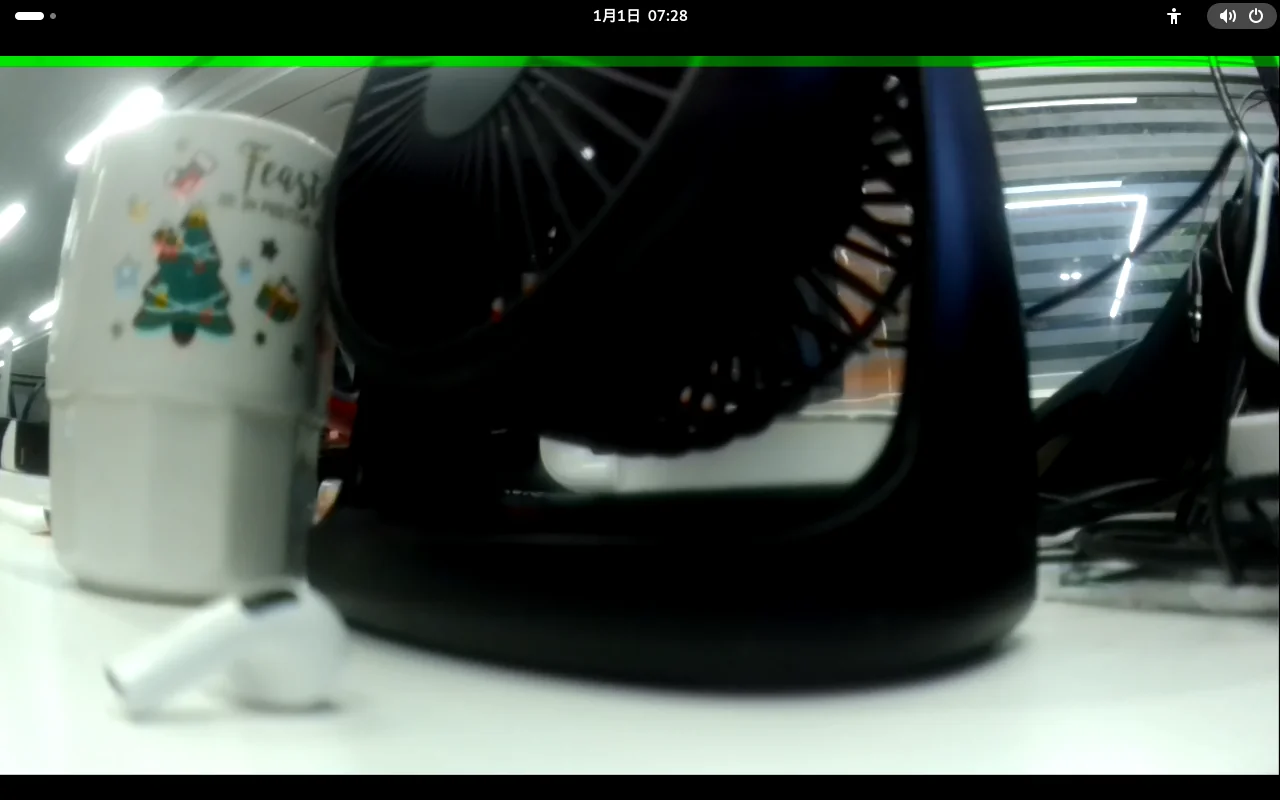
Run the following command on the device terminal, taking the IMX 219 connected to camera1 as an example:
gst-launch-1.0 -e v4l2src device=/dev/video33 io-mode=4 ! "video/x-raw,format=NV12,width=1640,height=1232" ! waylandsink
This command starts the camera with a 1640*1232 30 FPS configuration and transmits the image to the display for preview. If the gst pipeline status changes to “PLAYING”, it means the camera is running.
The two cameras use different video nodes to distinguish them, video33 represents the first CSI slot (camera0), video51 represents the second CSI slot (camera1)
To stop the camera stream, press CTRL+C.
Video Recording
Run the following command in the device terminal:
gst-launch-1.0 -e v4l2src device=/dev/video51 io-mode=4 ! \
  "video/x-raw,format=NV12,width=1640,height=1232" ! \
  mpph264enc ! h264parse ! mp4mux ! filesink location=/tmp/rec.mp4
This command starts the camera with a 1640*1232 30 FPS configuration, encodes it with h264, and saves it as a video file. If the gst pipeline status changes to “PLAYING”, it means the camera is running
The MP4 file is saved in the /tmp/ directory
To stop camera recording, press CTRL+C
You can enter the following command to play the video file:
gst-launch-1.0 filesrc location=/tmp/rec.mp4 ! qtdemux ! h264parse ! mppvideodec ! waylandsink
Photo Capture
Run the following command in the device terminal:
gst-launch-1.0 v4l2src device=/dev/video51 io-mode=4 num-buffers=1 ! \
  "video/x-raw,format=NV12,width=1640,height=1232" ! \
  mppjpegenc ! filesink location=/tmp/photo_1640.jpg
This command starts the camera with a 1640*1232 30 FPS configuration to take a photo, and after JPEG image encoding, saves it as an image file. If the gst pipeline status changes to “PLAYING”, it means the camera is running.
The image file is saved under /tmp/.
You can view the image file with the following command:
gst-launch-1.0 filesrc location=/tmp/photo_1640.jpg ! jpegparse ! \
  jpegdec ! imagefreeze ! videoconvert ! waylandsink